A free account saves your carts, tracks your orders, and lets you reorder in a click. You can still check out as a guest, but guest orders don’t get those features.
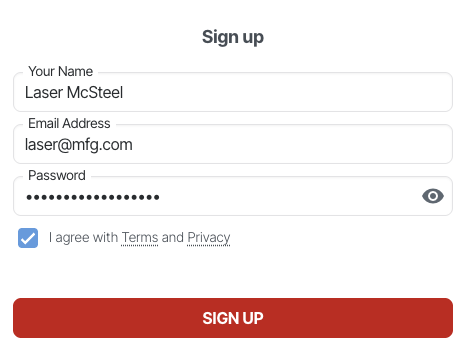
Click Get Started at the top right of any page on sendcutsend.com. On mobile, tap the three dots to open the menu, then tap Create Account. Fill in the form and click Sign Up. You’ll be signed in right away.
Go to app.sendcutsend.com and click Login at the top right. Your username is the email you signed up with, unless you’ve changed it in Settings.
Forgot yours? Click Login, then Forgot Password. Enter your account email and click Send Verification Email, and we’ll send a reset link from support@sendcutsend.com.
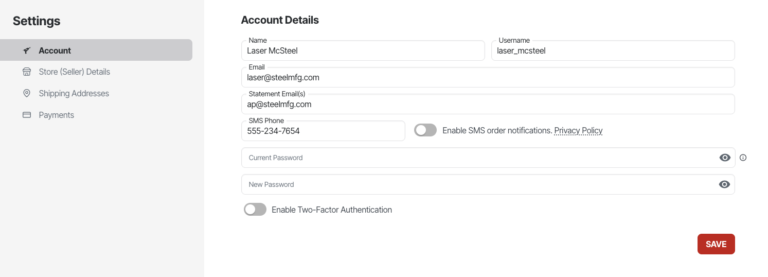
To change your password while you’re signed in, go to Settings > Account and enter your current and new password.
Turn on Enable Two-Factor Authentication in Settings > Account for an extra layer of security at sign-in.
Check your spam folder and add support@sendcutsend.com to your safe senders list.
Open the account menu at the top right and click Settings. Your details live under Account, Shipping Addresses, and Payments.
In Settings > Account, update Email and click Save. You can’t use an email that’s already on another account. Your account email gets every order update: confirmation, production progress, and shipping with tracking. Support also uses it if there’s a question about your parts.
Add the addresses that should get your invoices and Net 30 statements in Settings > Account, under Statement Email(s).
Your account has two:
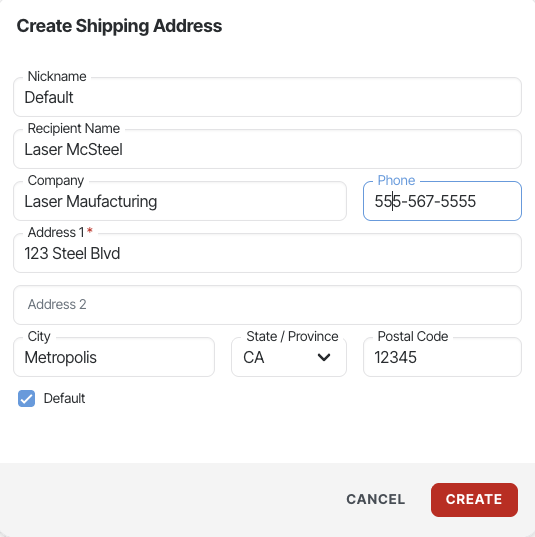
Go to Settings > Shipping Addresses. Click the pencil icon to edit an address, or Add Address to add a new one. Click Make Default to use an address automatically at checkout. Use a physical address. We don’t ship to PO boxes, APO, or FPO addresses.
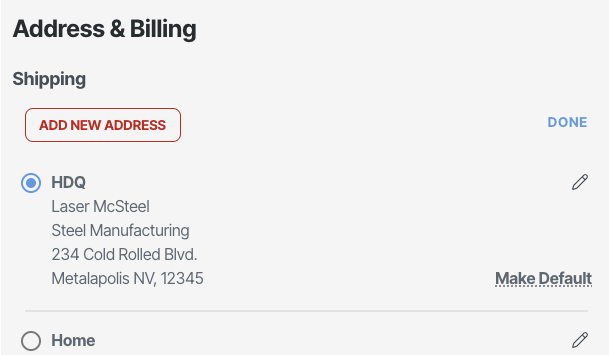
At the Address & Billing step, click Edit under Shipping, update it, then click Save Address.
Go to Settings > Payments to add, update, or delete a credit card.
We exempt accounts with a valid tax exemption certificate. Contact Support from your account and send your current certificate. Once we approve it, you’ll see the option to mark orders tax exempt at checkout. Request exemption before you order. We can refund tax on past orders for exempt entities, but only on request.
If your company has an Organization with tax exempt status, join it instead. Members get the exemption automatically.
An Organization is a business account. It connects everyone at your company so they share the company’s benefits without setting them up one by one.
If your Organization has terms, your orders are added to the monthly statement we send your billing department.
Email support@sendcutsend.com and ask to set up an Organization for your company. If we approve your Net 30 application, we’ll create one for you.
Each person needs their own account, created with their work email. Then join one of these ways:
Give each person their own account and add them to the Organization instead.
You have two options:
You can change any instant-quoted part in your cart right up until checkout, including parts you’re reordering. Custom-quoted parts can’t be edited in the cart.
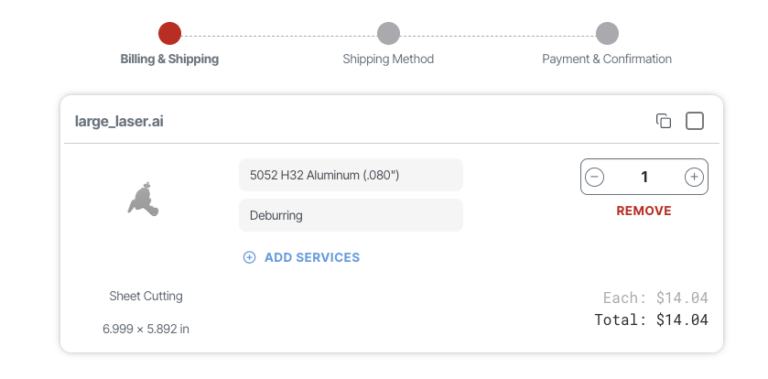
Click the material on the line item. You’ll go back to material selection, then click Next through the remaining steps to save.
Click the service on the line item to edit it.
Hover over the service and click the X.
Material and thickness decide which services are available. If you switch from 0.125″ to 0.040″ 5052 aluminum, for example, tapping may no longer be an option. Check every service before you check out.
Add your sheet or plate parts to your cart and click Save Cart. Name the cart and request approval to share it, since saved carts aren’t shareable by default. Our team checks it for manufacturability, then sends you a share link. Anyone with the link can order an exact copy of your cart. Saved carts can’t be edited, so save a new one if anything changes. CNC machined billet parts can’t be saved. Learn more about saved carts.
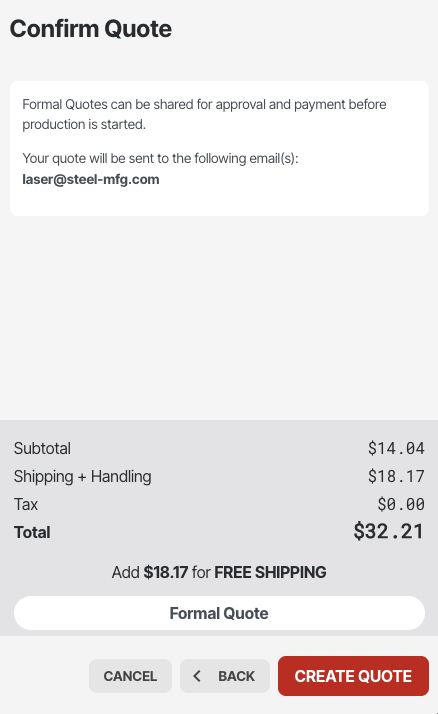
A Formal Quote locks your price for 30 days and gives you a payment link and PDF to send to whoever pays, like your purchasing or accounts payable team. The order stays on your account, so you remain the contact during production. Parts don’t go into production until the quote is paid.
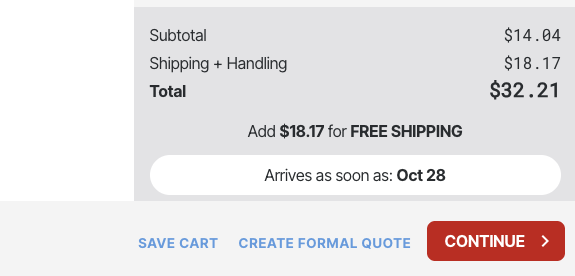
Add your parts to your cart and click Create Formal Quote. You’ll need a physical shipping address on file. Click Continue With Quote, choose expedited production or upgraded shipping at the Shipping Options step if you need them, then click Create Quote. Your payment link and PDF are ready right away, and the quote also appears in your Orders tab.
The Create Formal Quote button only shows when your cart has sheet and plate parts. For billet parts, start a chat with Support or email support@sendcutsend.com and ask for a Formal Quote with CNC machined parts.
The person creating the quote needs tax exempt status on their account first. Then check the tax exempt box at the Address & Billing step.
Send the payment link or PDF to anyone, and they click Pay Now to pay. To pay it yourself, find the quote in Orders and click Submit Payment. If your Organization has Net 30 terms, you can fund the quote with them. Once it’s paid, the status changes from Pending to New and your parts move into production.
The dates shown when you create the quote are based on lead times at that moment. You’ll get an updated estimate once the quote is paid.
Send the payment link as soon as you create the quote so it doesn’t expire. If it does, go to Orders, open Needs Payment, find the quote, and click Resubmit Quote. Click Add To Cart, make any changes, then create a new Formal Quote.
Every order you place while signed in lives in the Orders tab.
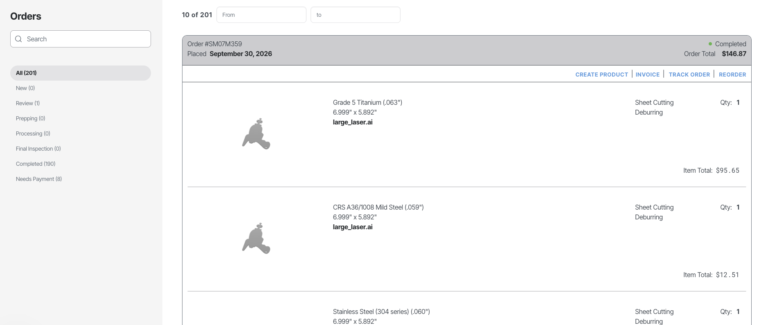
In Orders, find the order and click Track Order. The tracker shows each production step, your invoice, and a link to contact Support. Click the icon at the top left to copy a shareable tracker link. Guest orders get the same updates by email.
Once your shipping label is created, the tracker shows a carrier tracking link and a packing slip link. Orders that ship in more than one box get a tracking link and packing slip for each box. Each packing slip lists the quantity of every line item in that box.
In Orders, find the order and click Invoice to view, download, or print it. Invoices are in the tracker too. If parts were refunded or replaced with a gift card code, the amount shows as an adjustment at the bottom of the invoice. Refunds can take up to 24 hours to process.
In Orders, find the order and click Reorder, then Add To Cart. Every eligible instant-quoted part goes into your cart, where you can change materials, services, and quantities before checkout. Click Reorder on several past orders to combine them into one cart.
Contact Support as soon as you spot a problem. We can’t guarantee a change, and once production starts we can’t stop the order.
No. Each order is made and shipped on its own, in the order we receive it. You’ll find tracking for every package in each order’s tracker.
No. Orders placed under your account can’t be hidden or deleted. To keep orders separate, create a second account or check out as a guest.
No. Order updates always go to your account email. Change your account email to send them elsewhere. To have someone else pay while you stay the contact, use a Formal Quote.

We accept .ai, .dxf, .dwg, .eps, .stp, and .step

Customize one of our simple parts templates