A step-by-step guide on how to prepare STEP and STP format files for quoting and producing parts from with SendCutSend.
How to upload CAD assembly files for manufacturing
Table of Contents
Assembly upload limits
Assembly files can be processed with up to 25 unique bodies in each STEP/STP file. The max file size for successful upload is 5mb. Each part will then be individually configured at checkout!
When uploading a STEP/STP file including multiple parts, be sure your file only includes the parts to be cut. Hardware, fasteners, or screws used for assembly and installation should be removed from the STEP/STP file prior to upload.
If you need countersinking, dimple forming, hardware insertion, or tapping services, please provide simple through-holes in your design where you need the operations applied. After you have uploaded your file and selected a material, you can add and configure these services before checkout.
Align your assembly to a plane
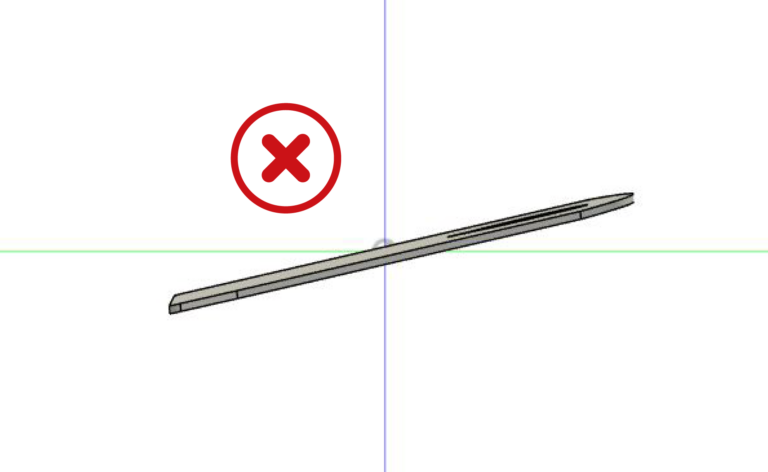
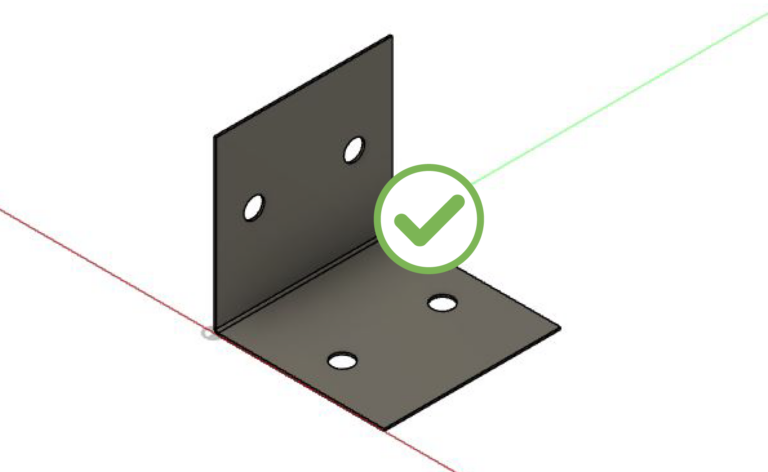
Your STEP/STP assembly should include at least one component with a flat face aligned to a primary plane. Assemblies where all parts are angled relative to the model planes may not process correctly.
Solution Reorient the assembly so at least one part has a stationary face (such as a base or mounting surface) aligned flat to a plane in the model space. If parts retained their orientation from the original assembly, you may need to adjust their orientation before exporting the STEP file.
The body is not flat to any plane.
The base of this part is flat to the XY plane.
Do not include dimensional features on sheet-cut parts within an assembly
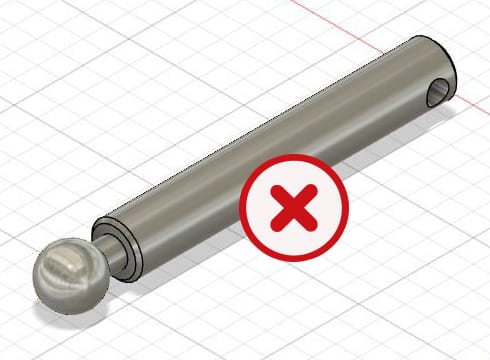
This part has tapered edges, and the thickness is rounded and not uniform.
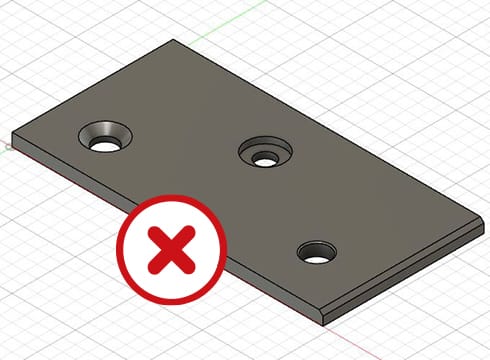
This file includes countersinks and counterbores.
Components within a STEP/STP assembly that are intended for laser cutting from sheet or plate should not include countersinks, counterbores, tapered edges, or other partial-depth features.
SendCutSend laser cutting is a 2D full-depth process. Bodies containing dimensional or tapered features may be interpreted as CNC-machined parts instead of sheet components.
Rounded or tapered bend reliefs may also be interpreted as dimensional features. Using square bend reliefs typically prevents this issue.
Solution
Ensure sheet metal or plastic components within the assembly have uniform thickness and through-cut features only.
If your design requires countersinking, dimple forming, hardware insertion, or tapping, include simple through-holes where those operations should be applied. After uploading your file and selecting a material, you can add and configure these services before checkout.
If square bend reliefs are not desired, exporting the sheet components as a DXF file may help avoid interpretation issues.
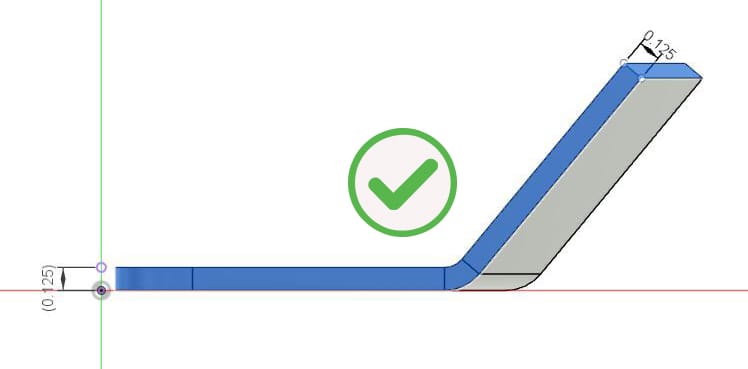
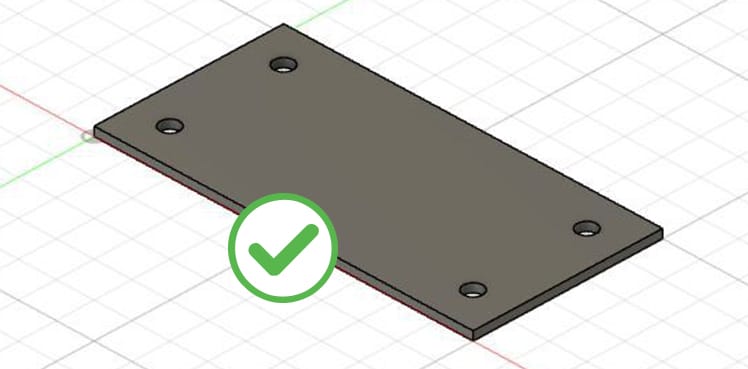
This part has faces at every edge and is uniform in thickness
All holes are cut-through
Set up sheet or plate parts with the correct material thickness
Whether you plan to order bending services or not, it’s best practice to model your part at the stock thickness desired. If your parts will require bending, modeling parts with the correct thickness and specifications ensures the parts you receive match the parts you designed.
Solution
Before uploading your file, please ensure that your design is using a sheet metal rule that matches the stock thickness you will select from our Material Catalog when ordering your parts. We have guidance on updating sheet metal rules in Autodesk Fusion and SolidWorks.
Your assembly should contain solid, sheet metal bodies
Your assembly STEP/STP file should contain solid sheet metal bodies (even if you plan to order a non-metal sheet material).
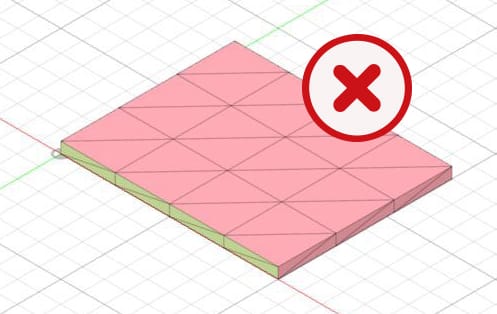
For parts that will be cut from sheet or plate, STEP/STP design files may not upload successfully if the model is an extruded flat pattern rather than a true sheet metal body. Please do not upload files that include mesh bodies.
Set up your parts using sheet metal tools even if you plan to order a non-metal sheet material.
Solution
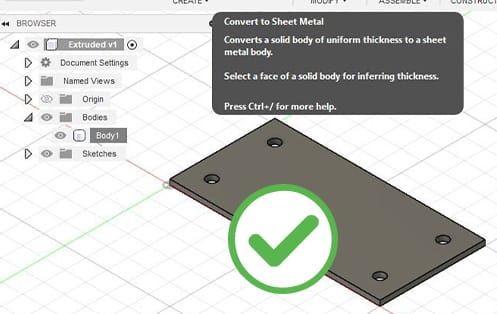
If your design consists of an extruded body, convert it to a sheet metal body before uploading your STEP/STP file. This function is accessible in CAD programs such as Autodesk Fusion and SolidWorks.
If there is a mesh body in your file, you may be able to convert the mesh body to a solid body and revise the model to meet our criteria depending on your design software.
This part includes a mesh body. It will need to be converted to a sheet metal body.
Convert your extruded body to sheetmetal
Design with the correct bending specifications
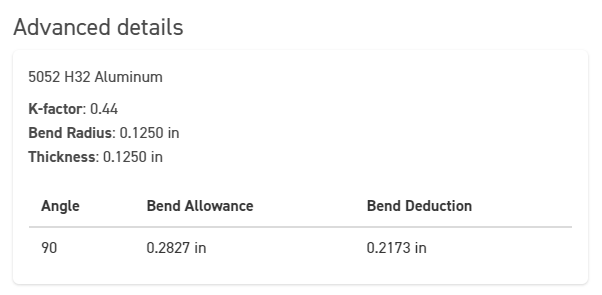
Sheet metal bodies in your assembly must use SendCutSend’s material specifications if bending/forming services are needed for the part. Designs with the wrong specifications may not upload successfully, or receive an ‘open contours’ error.
This ensures that your part will be bent accurately; you can find the bending specifications for the material and thickness needed for your part in our Bending Calculator.
Upload a valid STEP/STP format file
Your 3D file must be a valid STEP/STP format file and meet our criteria to upload successfully.
Solution
When saving your design be sure to check the final file for accuracy. Sometimes an export does not work and the file ends up with an invalid structure or completely empty.
If your file fails to upload, please revise to meet the requirements listed on this page and in our design guidelines, then try uploading again.
If your STEP/STP file still does not upload successfully, please contact our Support team. Let them know which program you’re using to design your part and attach your file so they can take a look!
Pre-flight checklist
File is in a format that we accept: step or .stp
File is no larger than 5mb
File contains 25 bodies or less
All holes and cutouts are at least 50% material thickness for laser cut parts
All holes and cutouts are no less than 0.070” for most waterjet cut parts
All holes and cutouts are no less than 0.125” for all CNC routed parts
Minimum machined cutout size is .125” / 3.175mm for CNC machined parts
File is built at a 1:1 scale, preferably in inch or mm units
All sheet parts are solid, sheet metal bodies with uniform thickness
All stray points, duplicate lines, empty objects and text areas have been removed
No shapes have open contours
All shapes have been united, combined or merged
All text has been converted to outlines or paths
Cut-out text (reversed text) has bridges or has been stencilized
Upload your CAD design, or try one of our customizable part templates to get instant pricing on your custom laser cut parts. All delivered to your door in a matter of days.